Timesheets
Timesheet app: every shift approved, locked and traceable
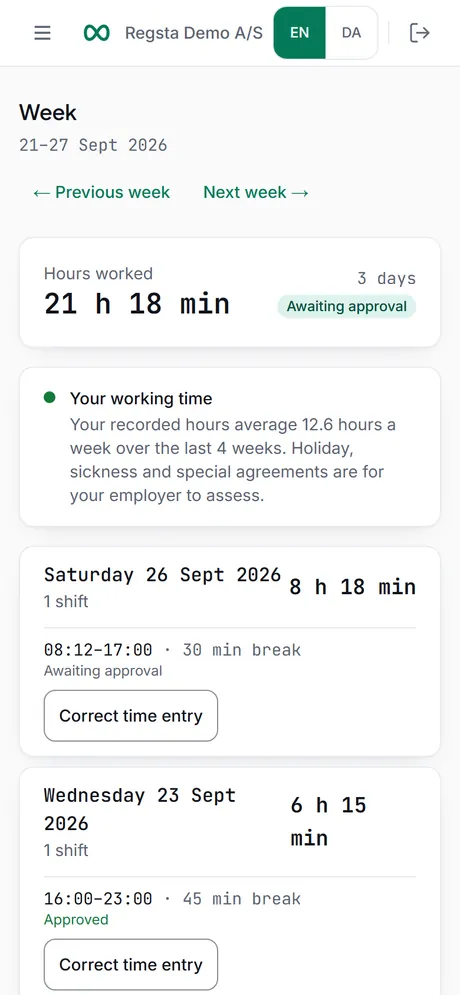
In Regsta every clock-in, break and clock-out becomes a timesheet entry that a manager approves or rejects with a reason. Approved entries are locked. A later change is a correction with a reason, saved as a new version while the original stays. Employees see the status of each entry on their Week page.
The life of a timesheet entry
Nobody fills in a form. The entry builds itself from the taps.
1. The employee clocks out
The shift is sent for approval as soon as the employee taps Clock out. There is no separate submit step.
2. It waits as Awaiting approval
The entry shows that status on the employee's Week page and in the manager's Approve hours list.
3. A manager decides
Approve locks the entry. Reject needs a reason, which the employee sees, and the employee corrects the times and sends them again.
4. The pay period closes
Once every entry in the period is approved, it can be closed. A closed period refuses new shifts, clock events and corrections until it is reopened with a reason.
When an entry is wrong or missing
People forget to clock in, or tap at the wrong moment. The fix is visible, not silent.
Forgot to clock in
The employee adds the shift under Manual entry with date, start, end, break and a reason. It can be at most 36 hours long and cannot end in the future.
Forgot to clock out
In Timesheets the filter Not clocked out lists shifts without an end time. A manager chooses Correct and sets the right end time.
A wrong time
The employee chooses Correct time entry under Week, changes the times and gives a reason. This also works on a shift that was already approved or rejected.
Time added by a manager
An Admin or Planner can add time for an employee from Employees, with Add time entry.
How managers approve
Approve hours lists everything that waits for a decision.
Planned against worked
If the shift was planned, the entry shows the difference from the schedule next to the hours worked.
One by one or together
Shifts without findings can be approved together, up to 200 at a time. A shift with a finding is reviewed on its own.
Undo approval
An Admin or Payroll user can undo an approval with a reason. The entry goes back to Awaiting approval.
A history you can show
Corrections never overwrite.
Versions, not edits
A correction is a new version. The original is kept and locked.
Who, when, before, why
The audit trail keeps who corrected an entry, when, what it said before and the reason.
Questions about the timesheet app
- Can employees see their own timesheet?
- Yes. Today shows the day's time entries and Week shows the whole week, with the status of each shift: Awaiting approval, Approved or Rejected. A rejection shows the manager's reason.
- Can a timesheet be changed after it is approved?
- Only as a correction. The approved entry is locked, so the change is saved as a new version with a reason and goes for approval again. If the shift is in a closed pay period, the period has to be reopened first.
- What if an employee forgets to clock out?
- The entry stays open and shows up under Not clocked out in Timesheets. A manager corrects it by setting the right end time, and the correction needs a reason.
- Can an employee add hours they forgot to record?
- Yes, with Manual entry: date, start, end, break and a reason. The shift can be at most 36 hours long and cannot end in the future, and it goes for approval like any other.
- Does the timesheet app work on a phone?
- Yes. Employees use it in the browser on their phone or in the Android app. The iPhone app is not yet published, so on an iPhone they use the browser.
Approve your first week of timesheets
Create your company, invite your employees and see their shifts arrive for approval.