Scheduling
Build the week, check who can work, and publish it to your team.
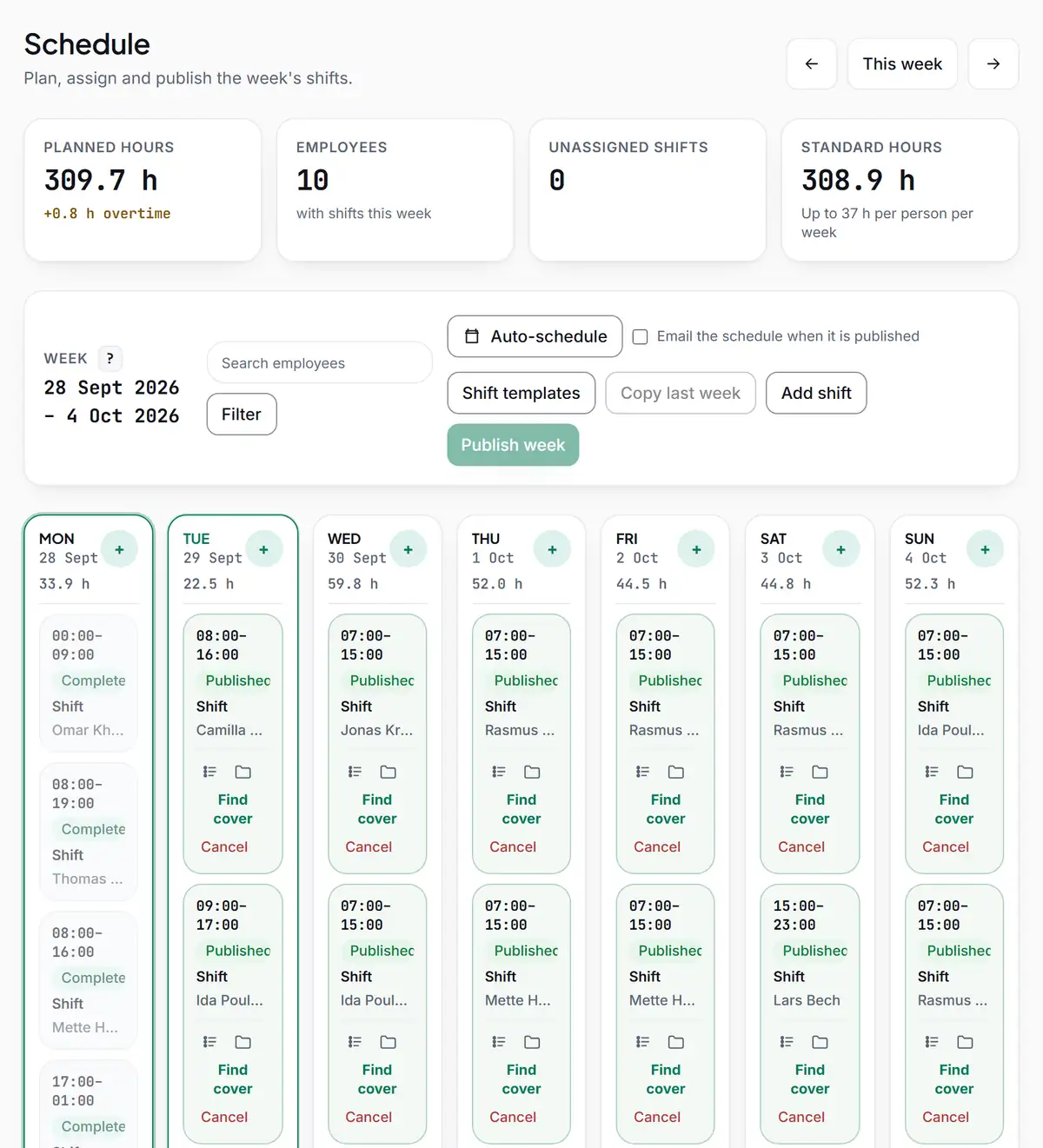
Plan shifts on one board. Regsta shows availability and approved time off when you assign a shift, lets you check rest and weekly hours before you publish, and tells your employees when the schedule is out.
Create your free account
No card required.
Build the week
Start from what you already know. Most weeks look a lot like the last one.
Shift templates
Save a shift as a template with its times, break and weekdays. Add it to the week for an employee in one step.
Copy last week
Copy last week's shifts into the new week as drafts. Change what is different, then publish.
Availability and time off first
Employees tell you when they cannot work or would like to work. When you assign a shift, Regsta shows who has approved time off or is unavailable at that time.
Fill the gaps
When a shift has nobody on it, or someone cannot make it, the request goes through Regsta instead of a group chat.
Open shifts
Offer a shift as an open shift. Employees can request it from their schedule, and a manager decides who gets it.
Cover requests
An employee who cannot work a shift asks for cover. A manager approves or rejects the request, and a rejection needs a reason.
Find cover
Find cover lists colleagues who could take the shift. Each one is checked against approved time off, overlapping shifts, 11 hours' rest, the 48-hour week and weekly rest in the week shown.
Check before you publish
Two tools show problems before your employees see them. Neither changes the schedule until you decide to.
Preview changes
Try changes to shifts and see what they do to planned hours and the rest rules. Nothing is saved while you preview.
Auto-schedule (rule-based)
Regsta suggests who takes each shift in the week. A suggestion is left out if it would give someone less than 11 hours' rest, more than 48 hours in the week, no 35-hour weekly rest, overlapping shifts, or a shift during approved time off or unavailable time. You review the suggestions and decide whether to apply them.
Auto-schedule and Preview changes look at the week on screen, not the weeks before and after, so check the week boundaries yourself. They do not calculate wage costs or apply the rules of a collective agreement.
Publish, and your team knows
Employees see their shifts once you publish the week.
Publish the week
Choose Publish week. Tick Email the schedule when it is published, and employees with an e-mail address get it by e-mail as well.
Mark as seen
Employees see their own shifts and mark each one as seen. It shows in the shift's history, so you know who has looked.
Calendar file
On their schedule page, employees can download a calendar file with their own shifts for the next six weeks.
Plan next week in Regsta
Create your company, invite your team and publish your first week.