Clock in and clock out
Clock in and clock out app that works on the employee's own phone
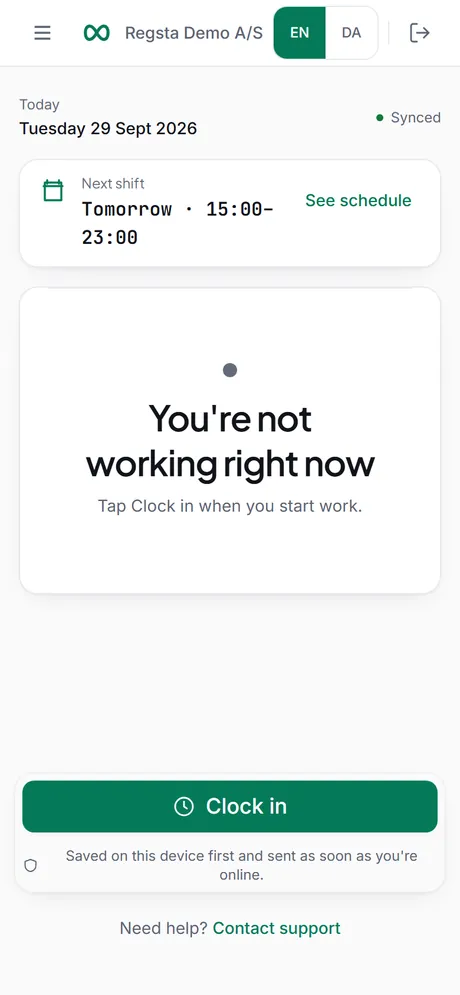
Employees clock in and out with Regsta on their own phone, in the browser or the Android app. One large button shows the next step: Clock in, Start break, End break or Clock out. Each tap is saved with the time it was made, kept on the phone without signal and sent later. There is no location tracking.
Four taps, one button at a time
The screen always shows where the employee is in the day.
Clock in
The screen shows that the employee is clocked in, and since when.
Start break and End break
Break time is added up and shown as Break on the screen. Hours worked are the time since clock-in minus the breaks.
Clock out
The shift is sent for approval straight away and the screen says Sent for approval.
No double shifts
Each tap carries its own ID, so a tap that is sent twice is saved once. An employee can have one open shift at a time.
When the signal drops
Only the four clock actions are kept without a connection.
Saved on the phone first
A tap is stored on the device before it is sent, with the moment it was made.
Sent in order
When the connection is back, the taps are sent in the order they happened. Regsta retries on its own, and the Time clock shows how many are waiting.
Told when one fails
If a tap cannot be completed, for example because the shift was already ended elsewhere, the Time clock says it needs attention and offers Try again.
What still needs a connection
Signing in, opening Regsta, manual entries, time-off requests and approvals. Open the Time clock before going somewhere without signal.
The taps are kept in the browser that was used. If an employee switches phone or browser before they are sent, they do not come along.
When a tap is missing or wrong
The fix is a record of its own, with a reason.
Forgot to clock in
The employee adds the shift afterwards under Manual entry: date, start, end, break and a reason.
Forgot to clock out
The entry stays open. A manager sees it under Missing clock-outs and sets the right end time in Timesheets.
A wrong time
Correct time entry under Week changes the times. The original is kept and the correction goes for approval.
Getting a team onto it
Nothing to install for the browser version.
An invitation by email
An Admin invites each person. The invitation is valid for 7 days, and the employee signs in with an email address.
Browser or Android app
Employees open Regsta in the browser on their phone, or use the Android app from Google Play. The iPhone app is not yet published.
No location or camera permission
The Android app is built without location and camera permissions.
Questions about clocking in and out
- Can employees clock in from their own phone?
- Yes. They open Regsta in the browser on their phone, sign in and use the Time clock. On Android they can also use the Regsta app from Google Play. The iPhone app is not yet published, so on an iPhone they use the browser.
- Does clocking in work without internet?
- The Time clock does once it is open. A tap is saved on the phone with the time it was made and sent in order when the connection is back. Signing in and opening Regsta need a connection.
- What if an employee forgets to clock out?
- The entry stays open and a manager sees it as a missing clock-out. The manager corrects it in Timesheets by setting the right end time, with a reason.
- Does the app track location or take photos?
- No. There is no GPS, no geofence and no photo at clock-in. Regsta records the time a person taps.
- Can several employees share one device?
- No. Each employee clocks in on their own account, and nobody clocks in for someone else.
Put the time clock on your team's phones
Create your company, invite your employees and watch the first clock-ins arrive.